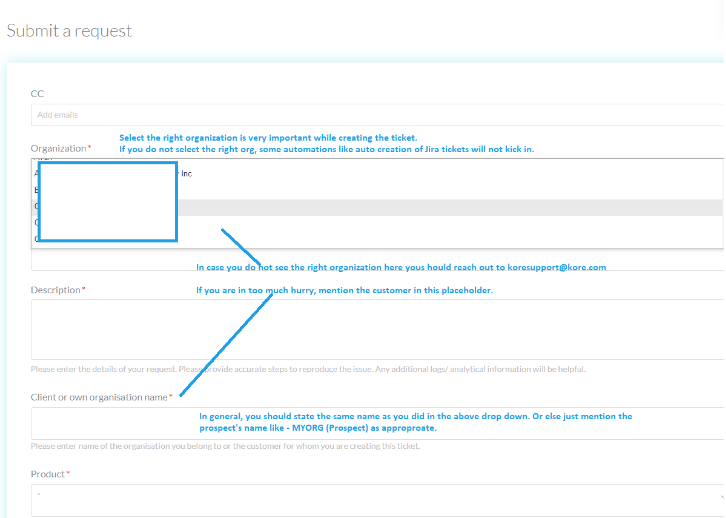
This article provides you step by step procedure for raising a Support Ticket/ Incident.
Users are required to initiate a support ticket/ incident to report any product-related defects or issues.
This action can be accomplished by submitting a ticket/incident via the support portal.
Access to the Support Portal: (Applicable for all Customers)
Users can navigate to Self-Service Product Support | Kore.ai Help Center - Kore.ai and click on the button “LOGIN to SUPPORT”
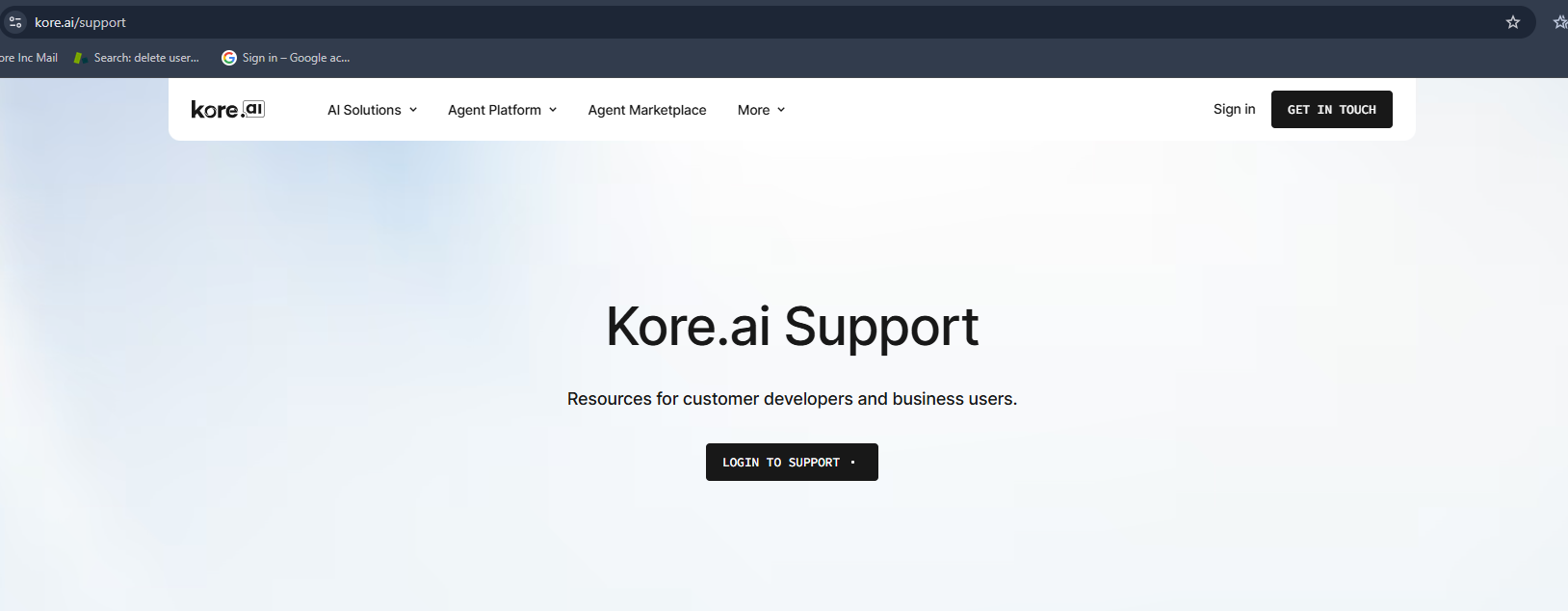
- Users will be redirected to the Support Portal ( https://support.kore.ai/ )
- Login/ Signup with your organizational Email ID
- Login with your credentials and the below page appears.
Note: It is always suggested to Refer to the Documentation, Community Posts before raising a Support Ticket/ Incident
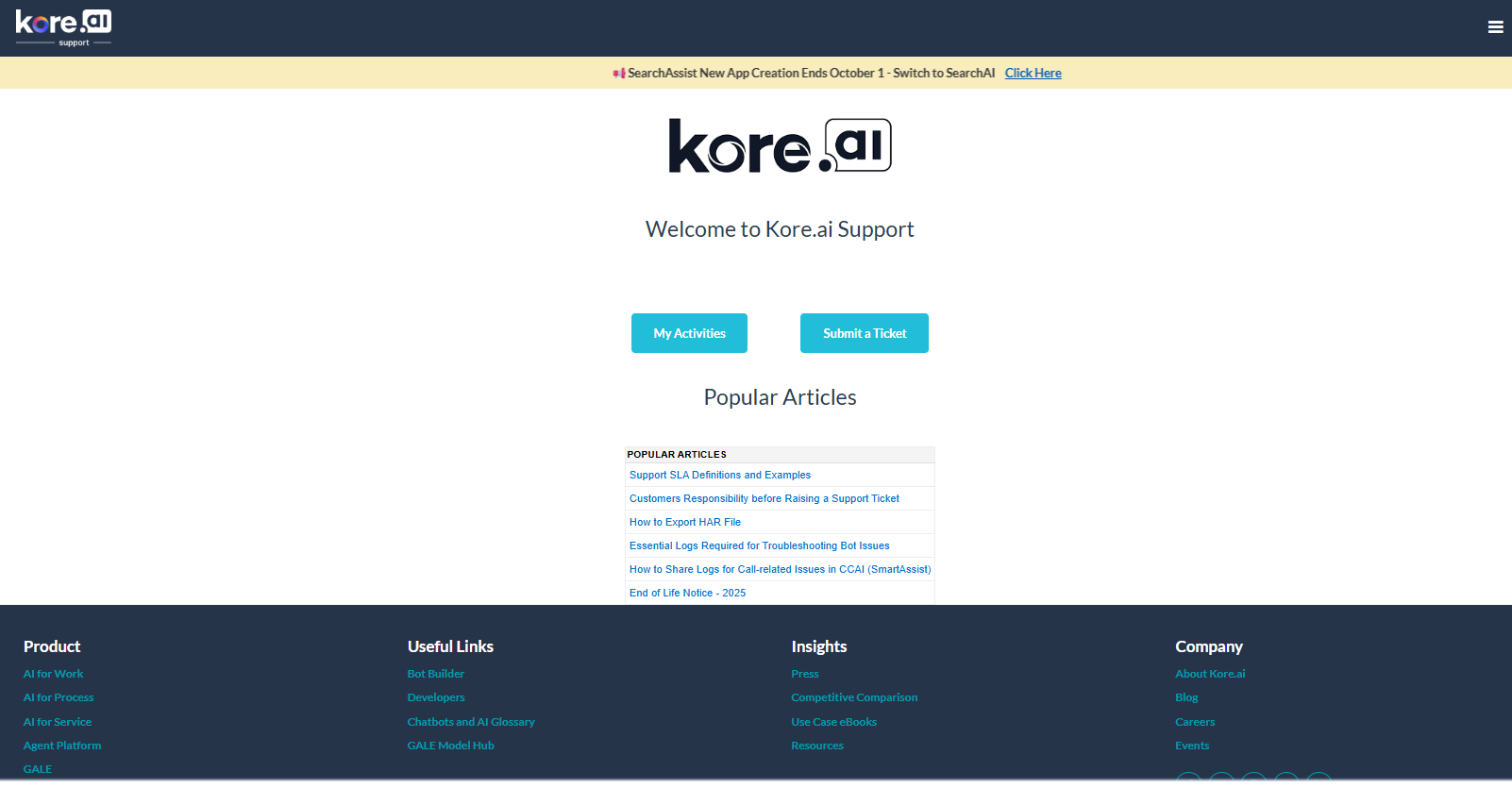
- Click on “Submit a Ticket” Button visible from the screenshot and the ticket creation Form appears on your screen.
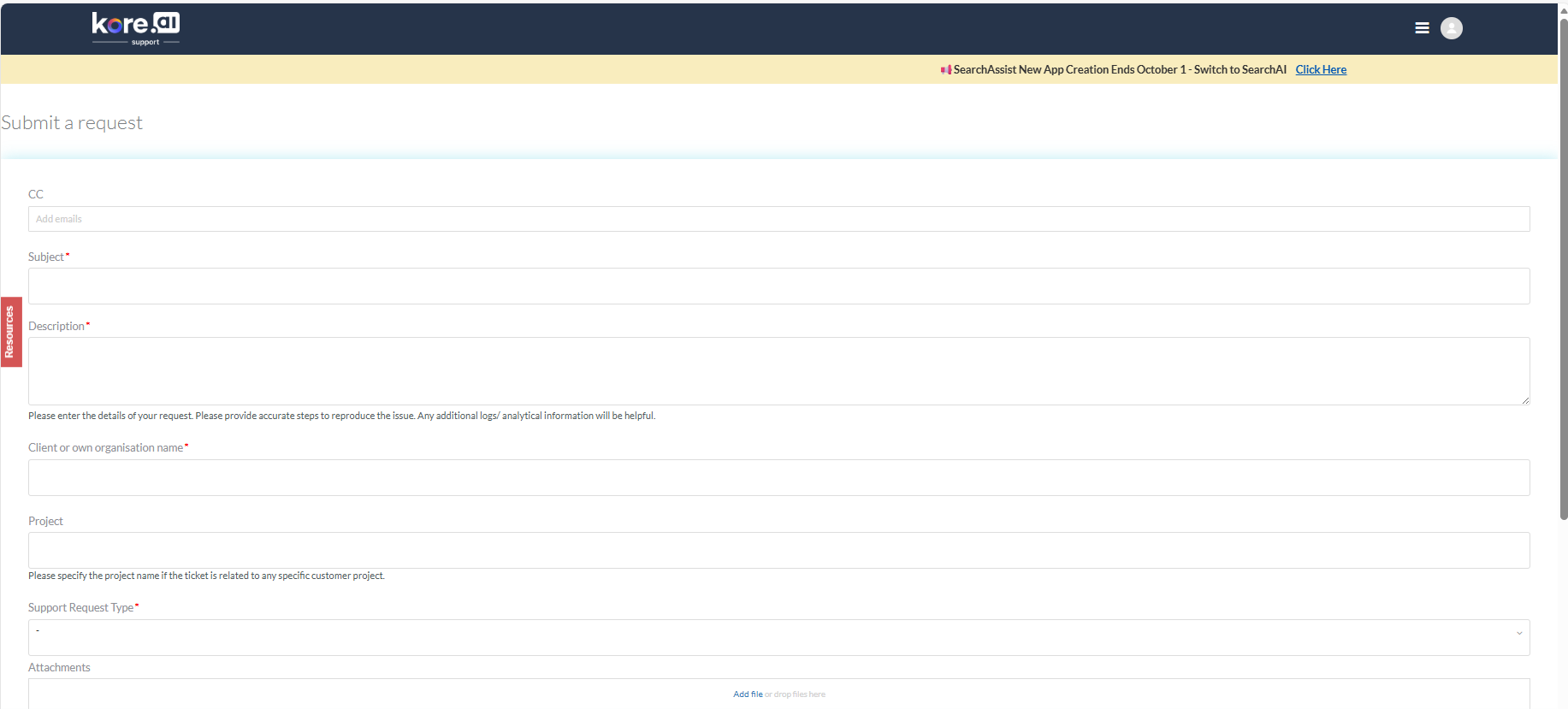
Note:
This is a dynamic form. Some fields are automatically populated based on the selected instance type and product name.
- Fill all the mandatory Details such as Product, Platform version, Installation Type, Affected Environment on the form and click on “Submit” button and the ticket/ Incident gets Created.
Below is an infographic showing the end user view and the options available on the support portal.
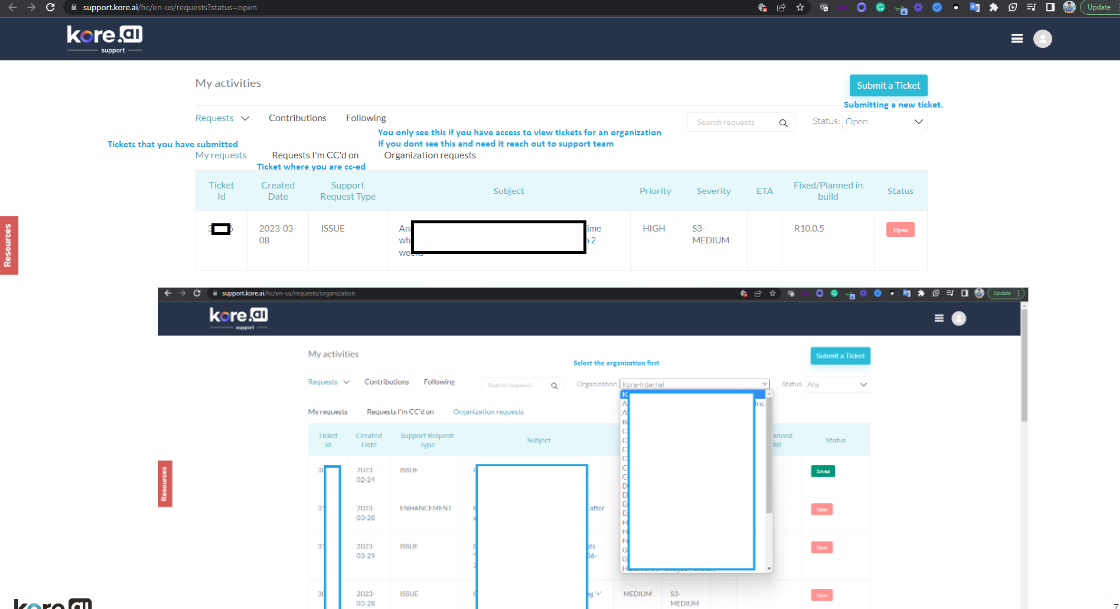
Note:
-
Applicable for Partners/ Kore Internal:
Selecting the right organization is very important while creating the ticket so that the relevant automations and SLA’s would be applied.
-
If there is any issue in accessing the portal despite registering, please do send an email to koresupport@kore.com
-
For SAAS Customers:
For faster turn-around on reported issues, koresupport@kore.com should be invited to the customer workspace (and necessary VAs/apps/projects) with an all-access but read only role and no rights to create any bot. Note – Enabling SSO may hamper with the support team’s direct access. -
For On-premise Customers:
For faster turn-around on reported issues please share the bot export copy while creating a support ticket. -
Use koresupport@kore.com for scheduling meetings only.
-
Please work with your ITS to whitelist/enable emails from support@kore.zendesk.com so that our emails do not go to spam.